Development Server
Run a local development server with aer server to preview Lightning Web Components, explore your application architecture, test API integrations, deploy metadata, and inspect platform events, all without an org.
Start the server
aer server force-app/main/defaultThe command loads Apex classes, triggers, flows, LWC, and object metadata from the specified paths. By default the server listens on http://127.0.0.1:8080.
Add --watch to automatically reload changed Apex and LWC files:
aer server force-app/main/default --watchPress Ctrl+C to stop the server.
Landing page
Open http://127.0.0.1:8080/ and log in to reach the endpoint browser. It
lists every development tool and API endpoint the server exposes, grouped by
category. Type / to focus the search box and filter endpoints by path or
description, press Escape to clear it, and use the copy button next to a path
to put it on the clipboard. The list is built from the live routes, so Apex
REST classes loaded from your source appear alongside the built-in endpoints.
A status indicator in the header shows whether the server is still responding.
The development tool pages are:
| Path | Purpose |
|---|---|
/dev/lwc | Lightning Web Component preview |
/dev/uibundle | UI Bundle preview |
/dev/explorer | Schema and Apex explorer |
/dev/events | Platform event viewer |
/dev/jobs | Async job monitor |
/dev/mocks | HTTP callout mocks |
The pages share one design with a light and dark theme. The theme toggle in the header persists across reloads and follows you between pages.
Persistent storage
By default the server keeps its data in an in-memory SQLite database that is
discarded on exit. Pass --db to keep data between runs:
# SQLite file
aer server force-app/main/default --db aer.db

# PostgreSQL
aer server force-app/main/default --db postgres://aer:secret@localhost/aer

# Disposable PostgreSQL server started for this run
aer server force-app/main/default --db postgresqltest://
The postgres:// and postgresql:// forms connect to an existing PostgreSQL
database. The schema is created with identity columns and PL/pgSQL triggers,
and the formula and SOQL functions aer needs are installed as database
functions when the database is first used. Each pooled VM opens its own
connections and transaction, so concurrent requests run in parallel rather
than serializing on one storage handle, and SELECT ... FOR UPDATE takes row
locks in the database. A lock that cannot be acquired within the lock timeout
raises a QueryException with UNABLE_TO_LOCK_ROW, the same error sfapex
raises.
postgresqltest:// starts a private PostgreSQL server for the run and removes
it on exit. A local PostgreSQL installation is required. The exec and test
commands accept the same --db values.
A server started against an existing database does not repeat work it has already done. After a full startup aer records a fingerprint over the schema, loaded packages, and startup options. A later start with the same fingerprint attaches to the database without migrating tables or reseeding metadata. Any change to the source, packages, or flags produces a different fingerprint and runs the full startup. Upgrading aer does not require rebuilding the database.
Session tokens issued against a persistent database are stored in it, so a login survives a server restart.
Seeding a persistent database
--bootstrap-db copies tables from a SQLite file into the server’s database
before startup. The copy merges rather than replaces: rows already present in
the target are kept, a bootstrap row whose Id already exists is ignored, and
re-running the copy is a no-op. See
Bring In Setup Data for how
to build a bootstrap file.
Local LWC preview
Open http://127.0.0.1:8080/dev/lwc in your browser to see a list of available Lightning Web Components. Click any component to render it in an isolated preview. The preview page injects mock @wire data and lets you interact with the component as if it were running in a Salesforce environment.
Combine --watch with LWC preview for a fast feedback loop:
- Start the server with
--watch. - Open a component preview in your browser.
- Edit the component’s HTML, JavaScript, or CSS.
- Save the file—the server reloads and the browser reflects changes.
LWC preview supports:
@apiproperties with editable inputs@wireadapters backed by local Apex and schema- Component composition and slots
- Lightning base components
UI Bundle preview
UI Bundles are listed at http://127.0.0.1:8080/dev/uibundle and served at
their application URL, http://127.0.0.1:8080/app/c__<bundleName>, after you
log in. The Data SDK shim resolves both @salesforce/platform-sdk and the
older @salesforce/sdk-data import, and exposes the graphql.query and
graphql.mutate API. Source-tree walkers skip node_modules and hidden
directories.
The Explorer
Navigate to http://127.0.0.1:8080/dev/explorer to browse the application architecture exposed by your source paths and loaded packages. The Explorer displays:
- Objects: Standard and custom objects with their fields, relationships, and picklist values
- Apex Classes: Methods and signatures, call graphs showing which methods call which, interface implementations, and class inheritance hierarchies
- Flows: Flow definitions with entry points and variables
- Custom Metadata: Custom metadata type records
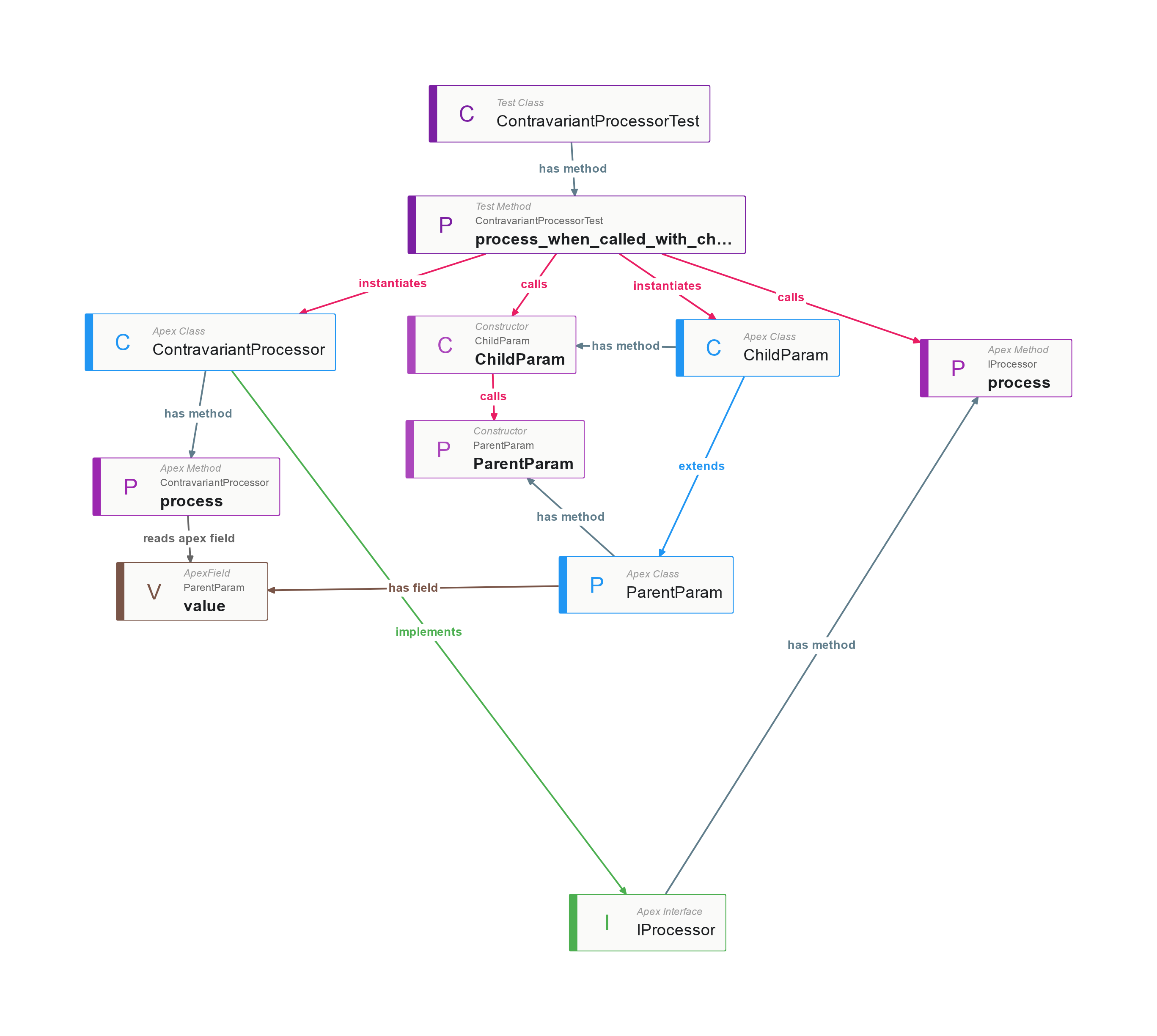
Use the Explorer to verify that your local environment matches expectations before writing Apex tests or integration code.
API endpoints
The server exposes Salesforce-compatible REST and SOAP API endpoints. Point external tools, scripts, or integration tests at the local server instead of a Salesforce org.
Authentication
Connect to the local server using the Salesforce CLI:
$ sf org login web -r http://127.0.0.1:8080 -a aer
Successfully authorized admin@aer.local with org ID 00D000000000000
The default credentials are:
- Username:
admin@aer.local(override with--username) - Password:
password(override with--password)
REST writes require an authenticated session. Create, update, and delete requests run as the user the session token resolves to, and a request with no valid session is rejected with 401. A create that does not supply a record type is assigned the profile’s default record type, matching Salesforce.
Pre-shared session tokens
A client that cannot complete the browser login flow, such as a CI job or a
script, can be given a token in advance. Pass --seed-session-token (or set
AER_SEED_SESSION_TOKEN) to register that token as an authenticated session
for the default admin user at startup:
aer server force-app/main/default \
  --seed-session-token '00D000000000000!AQEAQ.local.dev.token'
The token must start with 00D000000000000! and continue with letters,
digits, underscores, or periods. Log in with the Salesforce CLI using the same
token:
SF_ACCESS_TOKEN='00D000000000000!AQEAQ.local.dev.token' \
  sf org login access-token --instance-url http://127.0.0.1:8080 -a aer
Session tokens are accepted in both the Bearer and the classic
OAuth <sessionId> authorization schemes.
REST API examples
Create a record:
$ sf data create record -s Account -v "Name='Acme'" -o aer
Successfully created record: 001aer000000001AAA.
Creating record for Account... done
Query records:
$ sf data query -q "SELECT Id, Name FROM Account" -o aer
┌────────────────────┬──────┐
│ ID                 │ NAME │
├────────────────────┼──────┤
│ 001aer000000001AAA │ Acme │
└────────────────────┴──────┘

Total number of records retrieved: 1.
Querying Data... done
Call Apex REST:
sf apex run rest -m GET -u /services/apexrest/MyService -o aerThe server supports composite requests, batch requests, the SObject
Collections API, and Bulk API 2.0. A record written through any REST or Bulk
endpoint runs the same triggers, flows, workflow rules, and validation rules
an Apex insert would, and each row reports its own errors. The default API
version is 67.0; override it with --api-version.
Tooling API
Tooling queries return ApexClass, ApexSettings,
ApexCodeCoverage, ApexCodeCoverageAggregate, ApexOrgWideCoverage, and
MetadataComponentDependency, whose rows come from aer’s dependency graph.
MetadataContainer, ApexClassMember, and ContainerAsyncRequest implement
the container save path used by IDE integrations, and runTestsSynchronous
and runTestsAsynchronous run tests and record coverage. runTestsAsynchronous
accepts suiteNames, so sf apex run test --suite-names works against the
server.
Analytics API
The analytics/reports and analytics/dashboards endpoints run reports and
dashboards loaded from your source. Report results use the factMap shape
the Salesforce Analytics API returns. A dashboard response includes the
metadata of each component and its report results, run as the dashboard’s
running user.
Deploy metadata to the running server
The server implements the Metadata API deploy endpoints, so a standard deployment from the Salesforce CLI updates the running server without a restart:
sf project deploy start --source-dir force-app/main/default/classes -o aer

# Validate without applying
sf project deploy start --source-dir force-app -o aer --dry-run
Deployments are extracted and imported with the same metadata walker the server uses at startup, so any type aer loads from source can be deployed: Apex classes and triggers, objects and fields in metadata or source format, flows, flexipages, workflow rules, permission sets, profiles, custom metadata records, queues, labels, value sets, static resources, Visualforce pages, email templates, reports, and dashboards.
Each deployment compiles Apex against the merged schema, validates
package.xml members the way the Metadata API does, migrates storage tables
for deployed objects, and commits only on success. Deployments queue in
Pending status, apply one at a time, run as the deploying user, and roll
back on failure. A deployment that changes only Apex does not trigger a schema
reload. Deployed classes keep their ApexClass Id across the Tooling API,
the Data API, and Apex.
Event Viewer
The Event Viewer at http://127.0.0.1:8080/dev/events displays platform events and deliveries during the session. Use it to verify that your code publishes events correctly and that subscribers receive them before deploying to an org.
Publishing events
Events can be published through:
- Apex (
EventBus.publish()) - REST API
- Pub/Sub API (gRPC)
Subscribing to events
Subscriptions are supported through:
- Pub/Sub API (gRPC)
- CometD Streaming API
- Apex triggers
- LWC Emp API
Integration testing with events
- Start the server and open the Event Viewer in your browser.
- Publish events via Apex, REST, or Pub/Sub API.
- Watch events and deliveries appear in real time.
# Start the server
aer server force-app/main/default &

# Authenticate
sf org login web -r http://127.0.0.1:8080 -a aer

# Publish a platform event
sf data create record -s OrderStatusChange__e -v "Status__c='Completed'" -o aer

# Verify the event was published and delivered via the Event Viewer
Tips
- Use
--sandboxto setOrganization.IsSandboxtotruefor code that checks the environment. - Load managed packages with
--packageor--package-dirto test integrations with third-party apps. - Use
--allow-calloutsto allow the server to make real HTTP callouts. - Use
--wiremockto mock HTTP callouts with WireMock stubs (works with or without--allow-callouts). - Assign permission sets to the default user with
-p PermissionSetName, and permission set groups with--assign-psg GroupDeveloperName, for permission-aware testing. - Set the org’s default locale and currency with
--localeand--currency. See Configuration. - Use
--allow-emailto deliverMessaging.sendEmailover SMTP instead of logging and discarding it. See Sending real email. - Put flags you pass on every run in an
.aerrcfile. - Every response carries a
Server: aer/<version>header, which is a quick way to confirm a client is talking to aer rather than an org.